
As part of my ongoing data collection within my business I regularly check my Google Analytics account to make better business decisions (and this is something I recommend for you to do as well). If you’ve ever looked around Google Analytics much, then you will know that you regularly end up with random bot traffic on your site, so today I’m sharing how you can filter out bot traffic in Google Analytics 4.
What does bot traffic look like?
You will usually notice a spike in your GA traffic from a weird URL on a given date. These bots usually don’t tend to come round every day over a period of time but more a huge amount of visits in one day.
It looks something like this:

I can see 164 visitors from a page I’ve never heard of in the same DAY. 0% engagement rate, yet 8m 30s on page. That is fishy overall and a likely indicator of bot traffic.
Why do we want to filter out bot traffic?
To make good decisions from your data, your data needs to be clean. If you’re looking at how many visitors you had on any given page, and then you calculate conversion rates from there, having an extra 150 or 1500 visits from a bot is enough to completely mess up your data.
So we want to filter this out as much as possible, so we make decisions based on actual human visits NOT bots.
How to filter out bot traffic in Google Analytics 4
Right now Google Analytics 4 does not have a straight up way to filter out bot traffic like we had in Universal Analytics where you can just block certain URLs, so we have to use other options to make this happen for now. Google has said here that they do not have an ETA for this feature to make it into GA4.
[BTW is anyone else annoyed at Google constantly releasing new stuff without it being even remotely ready?!]
Aaaanyways, so here are your options:
Install Website Protection Software
There are a multitude of security plugins if you’re on WordPress, I have however only found a few that don’t exclusively talk about spam comments and spam form submissions (like Akismet or Titan) – these are here (however they haven’t been tested with the last few WP updates, so proceed with caution if you’re testing them and do backup first.
Block bots from accessing your website via robots.txt file
You can ask your web human to block bots from accessing your website via the robots.txt file.
Careful! You do not want ALL bots blocked from crawling your site because that would impact good bots (like Google itself) from finding new content on your site and therefore ruin your rankings.
But it is possible to exclude specific bots, however you do need to add some code to your website files and therefore I strongly recommend that you let someone handle this that knows what they’re doing.
If you do want to attempt this yourself, you can find the code to copy and paste over here.
Use the IP address to block traffic from showing up in your report
This is a little bit of a hack. In GA4, just like in Universal Analytics, you are able to filter out traffic from certain IP addresses so that it doesn’t show in your reports.
This is something you would normally use for YOUR OWN IP address (internal traffic) so that you don’t skew your own data.
But you can technically use this to exclude bot traffic.
First, you need to log into your hosting provider and navigate to your Cpanel. From there you can access the server logs and then find the IP address of the bot.
Then you can head into your Google Analytics account and click on Admin in the left menu.

Then under Data Collection and Modification click on Data Streams.

Open the data stream for your website.

Then scroll down and click on “configure tag settings”
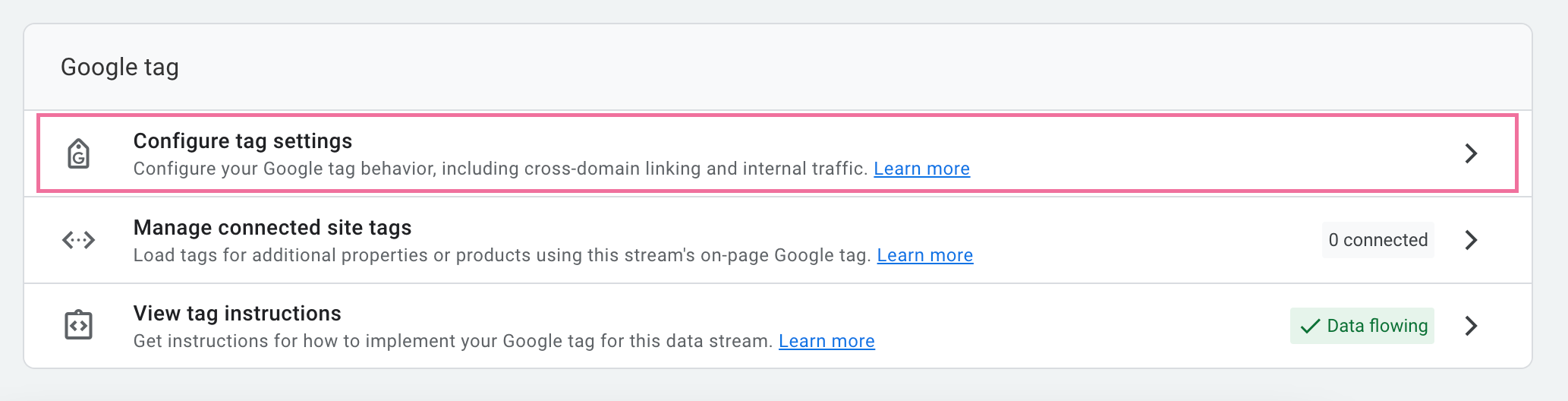
Click on “show more” at the bottom.

Then click on define internal traffic.
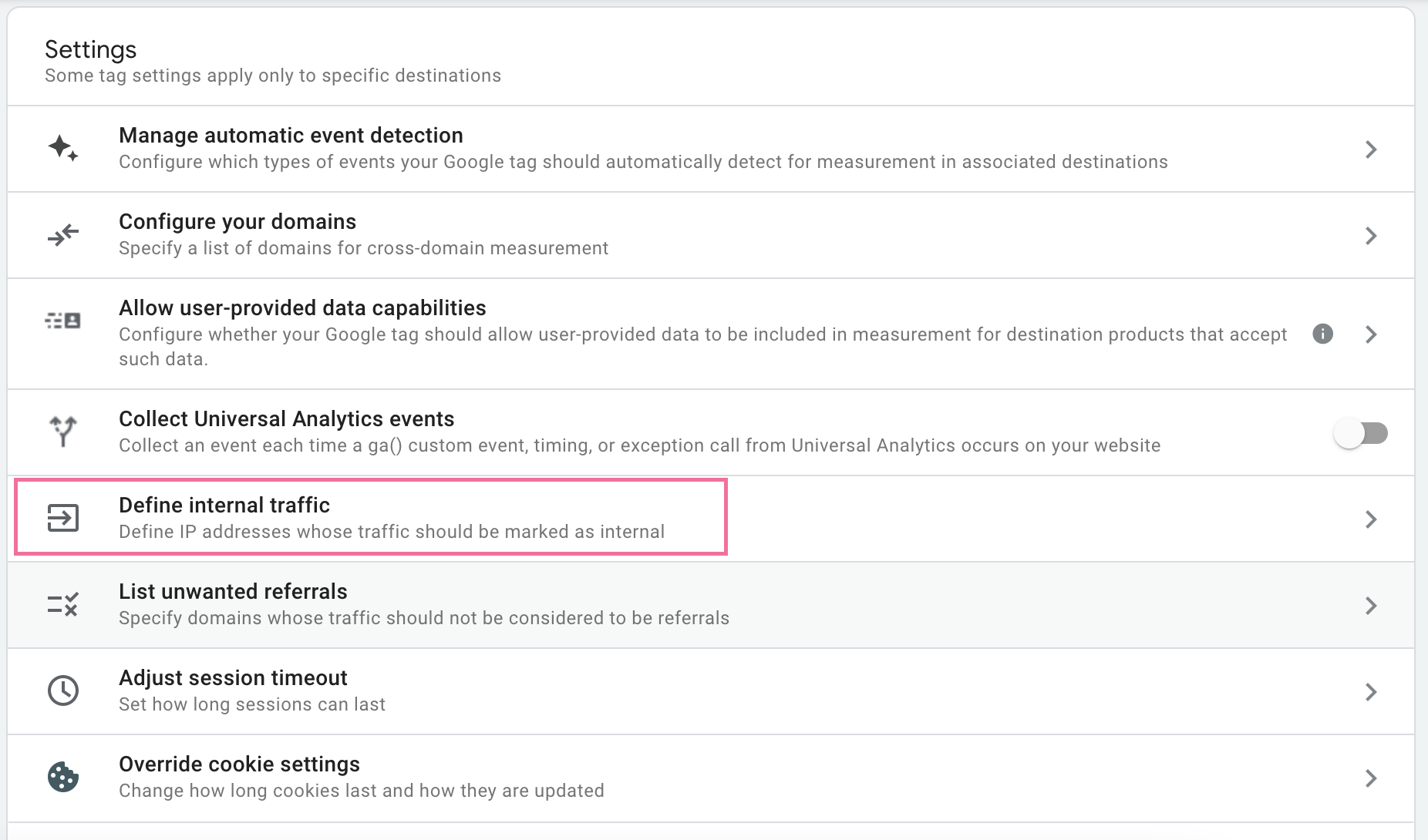
Then you want to click on “create” – and while we’re here doing this for bots, we can also add your IP address if you haven’t done that yet.

Here you’re going to want to fill out the options.

Rule Name: Make this a distinct name so you can remember it – eg. Home, CoWorking etc.
traffic_type_value: Keep internal for your internal traffic and rename the bot traffic as bot_traffic
IP address: Change to “equals” and then enter the IP address where the traffic originated from.
Now we’re tracking the “internal traffic”.
Next we need to create a data filter for this.
Go back to your admin section in GA4 and go to data filters.
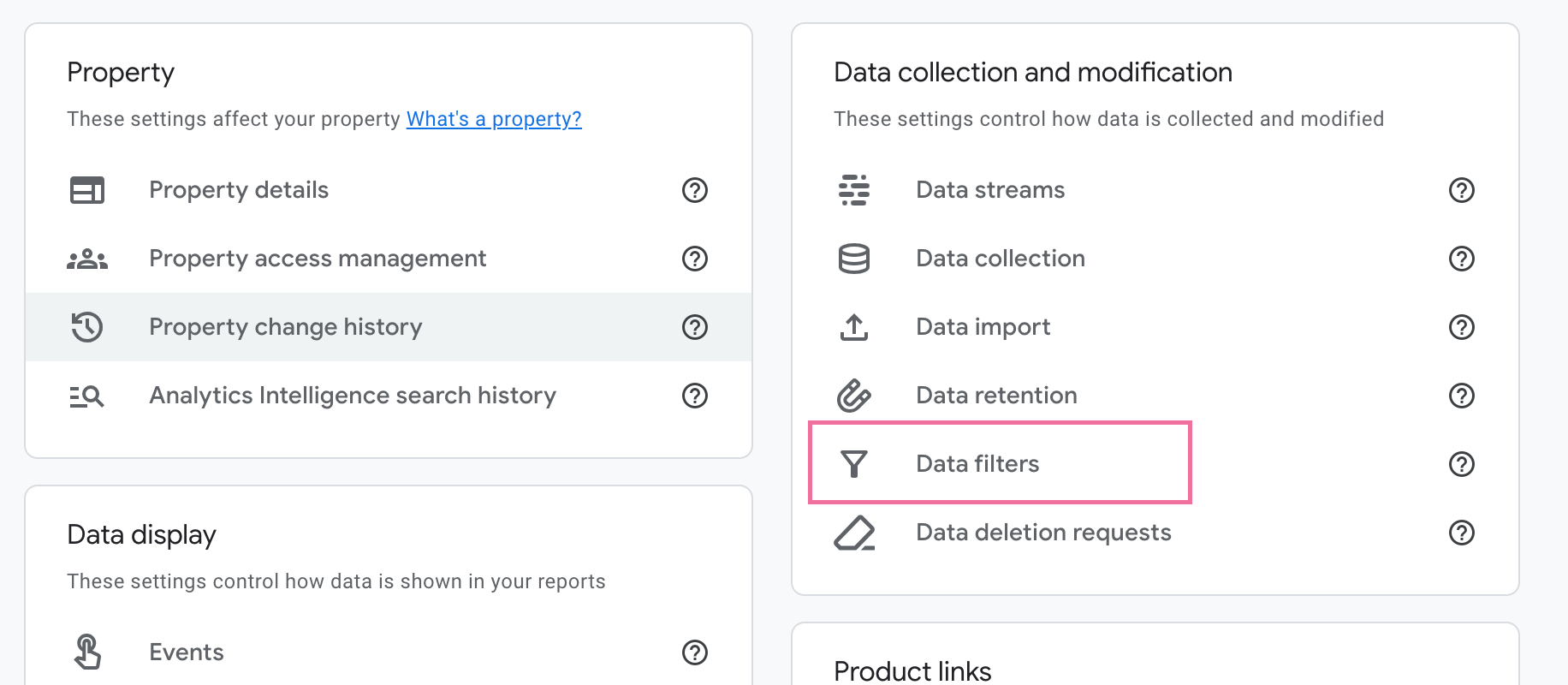
Here you want to check that GA hasn’t already created a data filter for you (it did for me automatically).
I have one filter set up for internal traffic and one separate one for bots.
You want to select the “internal traffic” filter.
Set the operator to “exclude”.
and for traffic_type you want to select your “internal” for your home or office IP and then the name you created for Bot Traffic earlier for your bot filter.
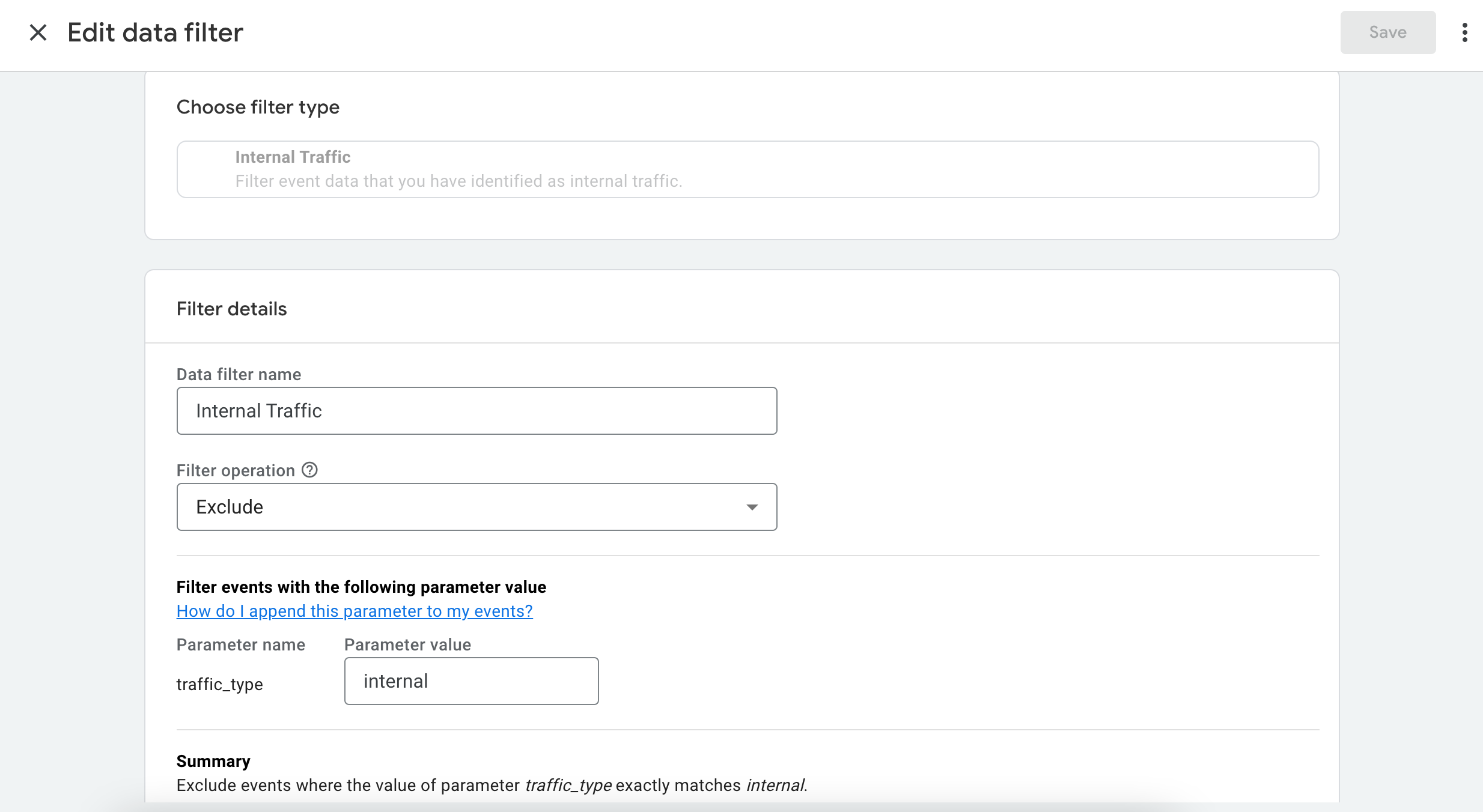
You can initially keep this in “testing” while you verify this is set up correctly and then turn it to active.
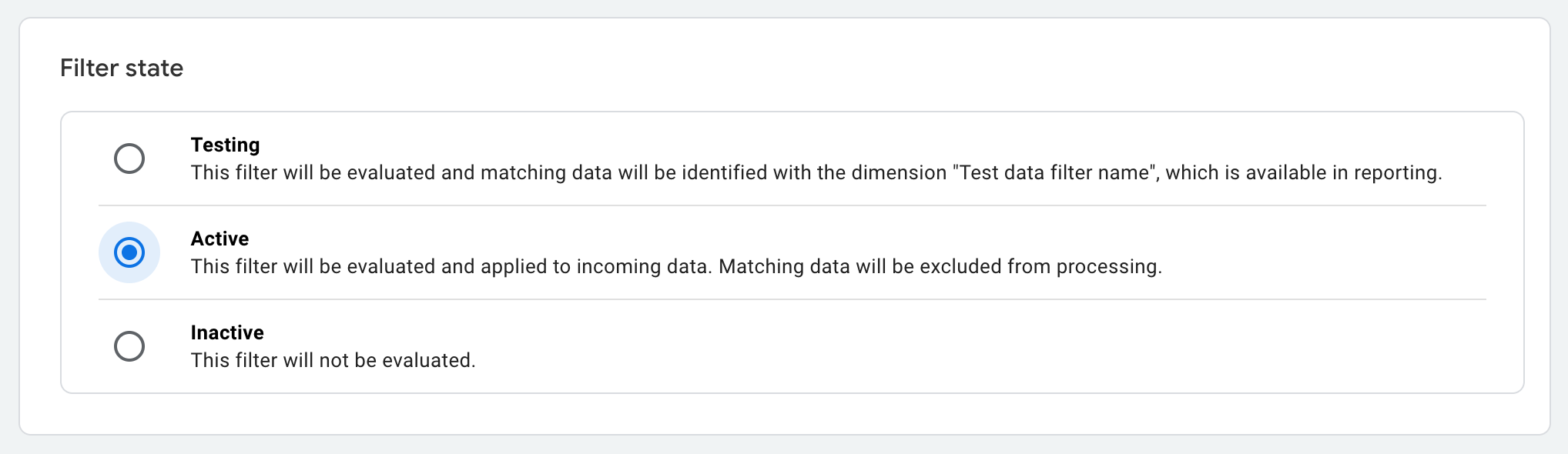
Please note that data filter are NOT retroactive, so past bot traffic will still show in your reports and you will manually need to filter this out.
Also they are permanent so once they’re switched to active the data will no longer be collected in GA, so it’s important you make sure this is all working as expecting by using the TESTING mode.
And with that you can hopefully clean up your reports in GA4 a little bit.
Happy tracking!
Need help?
If you have no idea what you should be tracking, how to set up your GA4 and GTM account or how to interpret the data in GA4 to answer important business questions, then I can help.

0 Comments