
Most business owners gather data via google analytics, however most accounts aren’t set up to do anything more than collect basic information, and sometimes that information is not enough for you to understand what your audience is really doing and how certain visitors behave differently from others. So, in this post I will show you how to send custom events from Google Tag Manager to Google Analytics
Preparation
To be able to follow this guide, you need to have a GA4 account and a Google Tag Manager account and have connected the two. I will add an article shortly on how to do that, but a quick google will help you out for now.
What is a custom event?
Google Analytics will collect a certain number of events by default. This include things like page views, and purchases. If you have enhanced event tracking turned on, then it will track even more events.
However there are still moments where you are looking for a quick way to assess user behaviour that relies on something that GA isn’t tracking right now, or it takes multiple steps to retrieve this information from GA and it would just be easier if you had the option to access this data from ONE place quickly.
How I use Tag Manager within my business
I use Podia as my course platform. I love Podia however the integration with GA4 isn’t the best, and there is no way to customise the data being sent. So it’s easy for me to see ALL purchasers, but what’s NOT easy to retrieve is how many people landed on which thank you page. So I’d have to manually check each thank you page URL when I’m running reports in GA – and this takes a long time.
So I use GTM to trigger a tag to be applied when someone visits a specific thank you page. And that lets me get a better overview.
(Please note that this data may still be slightly inflated, and is never 100% accurate).
So now I can run reports and find the people who land on specific thank you pages as opposed to grouping all purchasers together in one audience.
How to set up a custom event in Google Tag Manager and send the data to GA
The first thing you want to do is head into your GTM account and navigate to Triggers on the left menu.
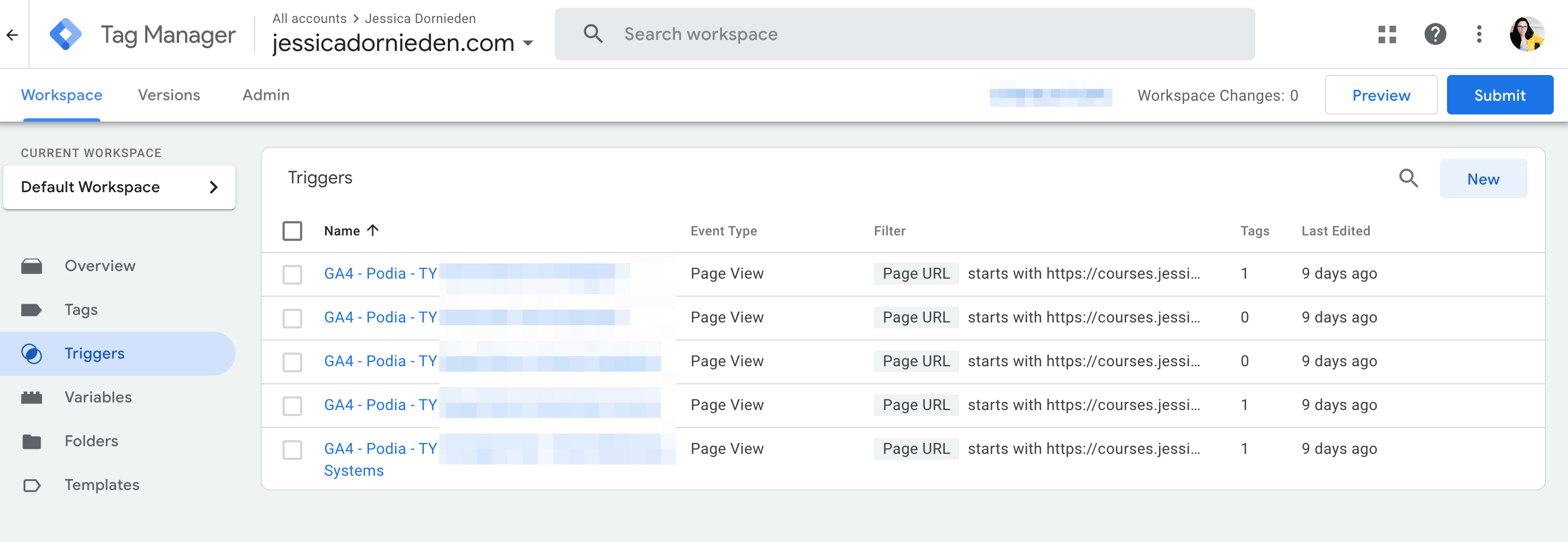
Then click New in the top right corner.
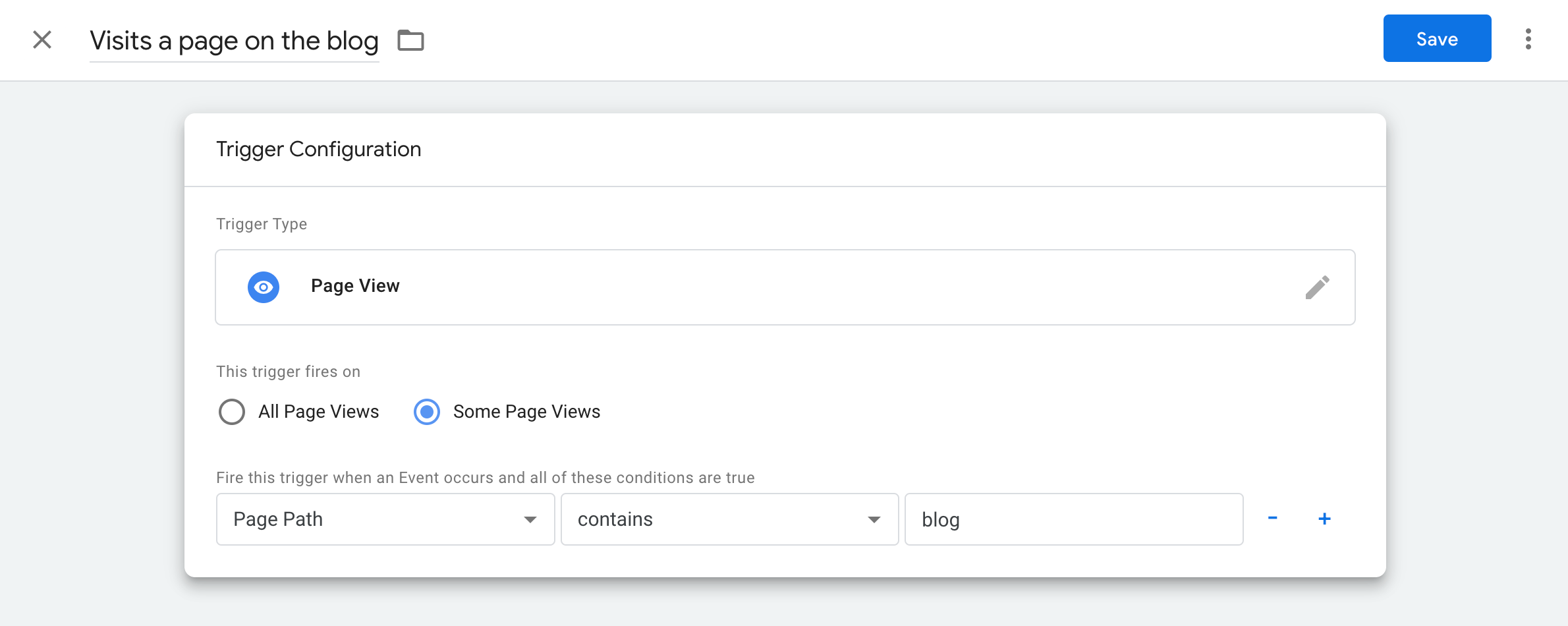
Here we want to give this trigger a name. I choose something that describes the action a person took. In my case they visited the blog.
I select “page view” and then “some page views” because I don’t want to track every page view over the whole site, but only specific ones.
Then I choose “page path” because I’m only after a specific section of the URL.
I set up my website in a way that has all blog articles on the URL domain/com/blog/article-name-here, so I can easily filter the blog traffic out (I could actually just do this in analytics itself because of the way I structured my URLs).
Then hit Save.
Then navigate to “Tags” in your left-hand menu.

Then click on New.

Again you want to give this tag a name. I don’t have many complex data streams so I stick with something simple, in my case Blog Visitor, because that’s who I’m wanting to tag.
You need to select GA4 Event from the dropdown list, because we want to send an event to GA4.
Then you need to give the event itself a name (this is what will appear in your analytics account afterwards, so you want to make sure this makes sense to you!). I’m going with blog_visit because that’s what I’m tracking.
So if I run reports later on and check my purchasers, I could for example see how many of them had a blog_visit.
Or I can check my people that subscribed to my Newsletter or a Freebie and see how many of those were on the blog at some point.
This lets me see whether or not my blog is doing any work for me or not.
Then you want to add an event parameter (this is optional) – in my case I also want to be able to see which post exactly they were looking at.
Then you press Save again.
Debugging
If you want to make sure your setup is working, you can now enter debug mode in tag manager and perform the action that you’re tracking on your site.
Pushing your changes
Now in GTM you need to remember to always push your changes to make them live, otherwise nothing will happen.

So go to the top right corner and press Submit.
Then follow the prompts on the screen to create a new version of your tags and you’re done.
And now you should have additional data in your GA Account.
Happy Tracking!
Need help?
If you have no idea what you should be tracking, how to set up your GA4 and GTM account or how to interpret the data in GA4 to answer important business questions, then I can help.

0 Comments